Blog de Mr. Appz



The best coding agent on the market no longer forces you to pay for an Anthropic subscription. Claude Code with Ollama becomes an autonomous developer that reads your repository, edits files, runs commands, and even handles scheduled tasks on its own, pointed at local or cloud models. I use it daily with kimi-k2.7-code:cloud — on the Ollama Cloud Pro plan — and this is the guide I wish I had found on day one: setup, models, real costs, and honest limits.
Why use Claude Code with Ollama
Claude Code is Anthropic’s agentic coding tool: a layer that wraps the model and turns it into a development partner with hands. It chats with you, runs commands through its permission flow, edits your project, splits work across subagents, searches the web, fetches and summarizes pages, analyzes screenshots, and even reasons step by step when the problem demands it. Out of the box, however, it only talks to Anthropic models.
Ollama provides the missing piece: its Anthropic-compatible API accepts the agent’s connections and redirects them to the model you choose, whether local on your GPU or in Ollama Cloud. Same premium harness, your choice of engine. If you want to see it against the other eleven options in the ecosystem, I have a full ranking of harnesses for Ollama Cloud that goes into detail.
Prerequisites
The list is short: a recent Ollama installation, the Claude Code CLI, and a model with a context window of 64,000 tokens or more — crucial for large repositories, where the agent needs room to breathe. If you go local, your GPU’s VRAM sets the ceiling for what you can load: my guide to choosing an LLM for your hardware tells you what yours can handle. For cloud models, an Ollama account with a subscription is enough.
Setting up Claude Code with Ollama step by step
The quick way: one command
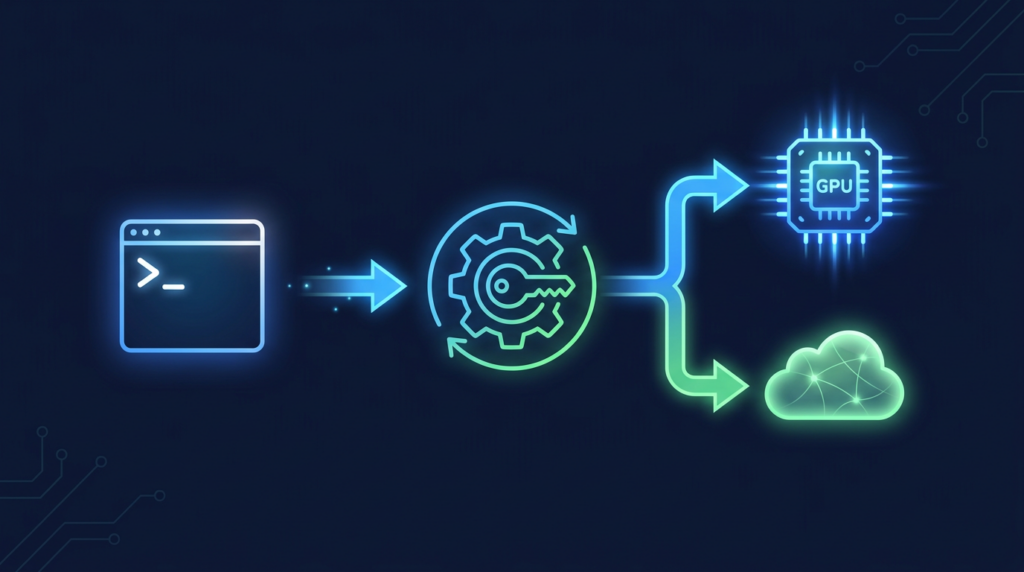
If you already have Ollama, the express route fits in one line. Ollama handles the selectors, pulls the model when needed, and launches the agent pointed at its models. No environment variables, no scripts, no surprises:
ollama launch claudeThe manual way: environment variables
If you prefer fine-grained control — or your installation does not use the built-in launcher — the classic path is to install the CLI and declare three environment variables that redirect authentication and the endpoint to Ollama. On macOS and Linux:
curl -fsSL https://claude.ai/install.sh | bash
export ANTHROPIC_AUTH_TOKEN=ollama
export ANTHROPIC_API_KEY=""
export ANTHROPIC_BASE_URL=http://localhost:11434
On Windows the installer changes to irm https://claude.ai/install.ps1 | iex, but the variables stay the same. With the environment ready, you start the agent with the model you prefer:
claude --model qwen3.5And if you want it all on a single line, with the cloud model I use daily:
ANTHROPIC_AUTH_TOKEN=ollama ANTHROPIC_BASE_URL=http://localhost:11434 ANTHROPIC_API_KEY="" claude --model kimi-k2.7-code:cloudOnce you have Claude Code with Ollama up and running, every later start is immediate: the agent points at localhost:11434 and you pick the engine per session.
Which model to use: free local or subscription cloud
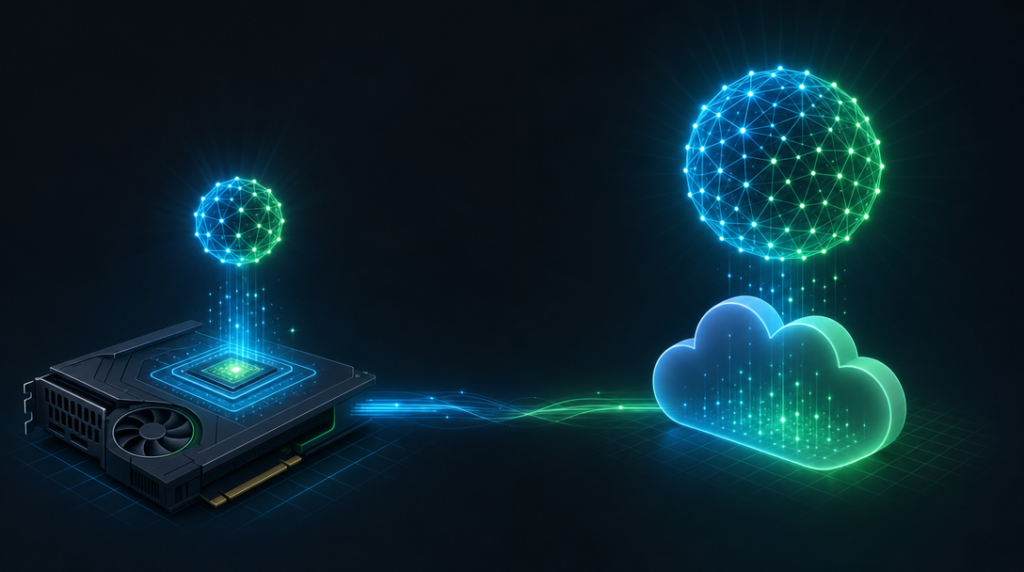
Here comes the nuance most guides gloss over, and the reason this title promises no gold. With local models, the cost is zero: your GPU provides the hardware and Ollama does the rest. With Ollama cloud models — like kimi-k2.7-code, the one I use — you need an Ollama Cloud subscription; in my case, the Pro plan. What disappears in both cases is the Anthropic bill: the ollama token replaces its authentication entirely.
Locally, with 24 GB of VRAM the Qwen 3.6-27B is the all-rounder and Devstral Small 24B the multi-file specialist; with 16 GB, Qwen3-Coder-Next offers the best of both worlds thanks to its MoE architecture. If your GPU is more modest, the hardware model guide has options from 8 GB. In the cloud, kimi-k2.7-code:cloud supports vision, tools, and reasoning at once, and is optimized for long-horizon coding with roughly 30% fewer thinking tokens than its predecessor. To experiment with vision, gemma4:cloud does the job.
My favorite combination of Claude Code with Ollama is the cloud for heavy work and a local model for quick sessions: changing engines is just a flag.
What you can do every day
The real value is not the chat, but what the agent orchestrates. Subagents split the work in parallel: one analyzes the database schema, another writes the tests, another documents while you keep coding. The /loop command, meanwhile, schedules recurring tasks inside the session:
/loop 30m Check my open PRs and summarize their status
/loop 1h Research the latest AI news and prepare a summary
/loop 15m Watch for new GitHub issues and triage by priority
Web search and page fetching run through Ollama’s API, so the agent consults the web without leaving the workflow. Vision lets you send screenshots and request changes by pointing at what you see, which is a treat when debugging interfaces. For scripts, Docker, or CI pipelines there is the non-interactive mode:
ollama launch claude --model gemma4:cloud --yes -- -p "how does this repository work?"And if you want to drive it from your phone, there is an official Telegram plugin: create the bot with @BotFather and launch the agent with --channels plugin:telegram@claude-plugins-official, configuring permission rules so it can act autonomously.
Honest limitations
Not everything is gold, and not everything is free. Local models still do not match Claude Opus 5 on coding agent benchmarks: if your work demands the maximum, the cloud still rules. Context sets another real limit: below a 64k window, large repositories make the agent struggle. The Ollama Cloud subscription is a monthly cost this title prefers not to hide. And the permission flow, though welcome day to day, gets tedious in unattended automation: for that, isolated environments and clear rules work better.
Conclusion: the top harness, your way
Claude Code with Ollama turns your terminal into a full development team: the best agent on the market, the model you decide on, and the freedom of not depending on a single bill. Start with ollama launch claude, try a local model, and move to the cloud when the work demands it. All the technical details live in the official Ollama documentation; the rest is practice.
Part of this content has been generated with AI and reviewed by the author.